GUI client
Caution
The GUI was introduced in Multipass version 1.14. It is still in its MVP (Minimum Viable Product) stage, so it is likely to see some changes in design as it evolves.
The Multipass GUI (Graphical User Interface) is an application that acts as a client for interacting with the Multipass service. It aims to make the process of managing instances easier for users who do not want to interact with the CLI (Command Line Interface) client.
You can launch the GUI either using your system’s application launcher or by running multipass.gui in a terminal.
For more information on GUI logs, see How to access logs.
As of now, the Multipass GUI provides the following set of capabilities, grouped under four tabs:
as well as a Tray icon menu.
Catalogue tab
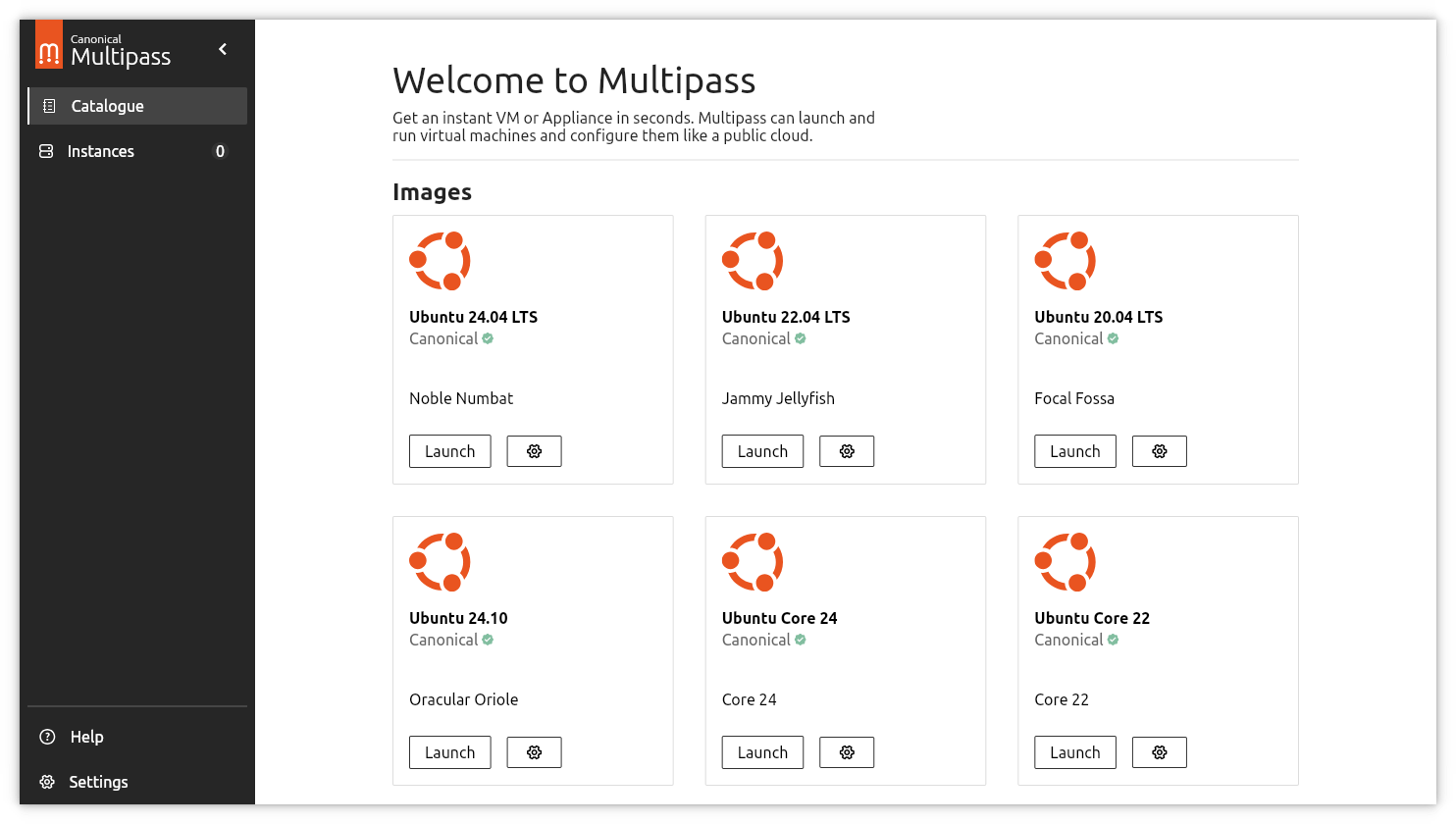
Here you can browse the available Ubuntu, Debian and Fedora images.
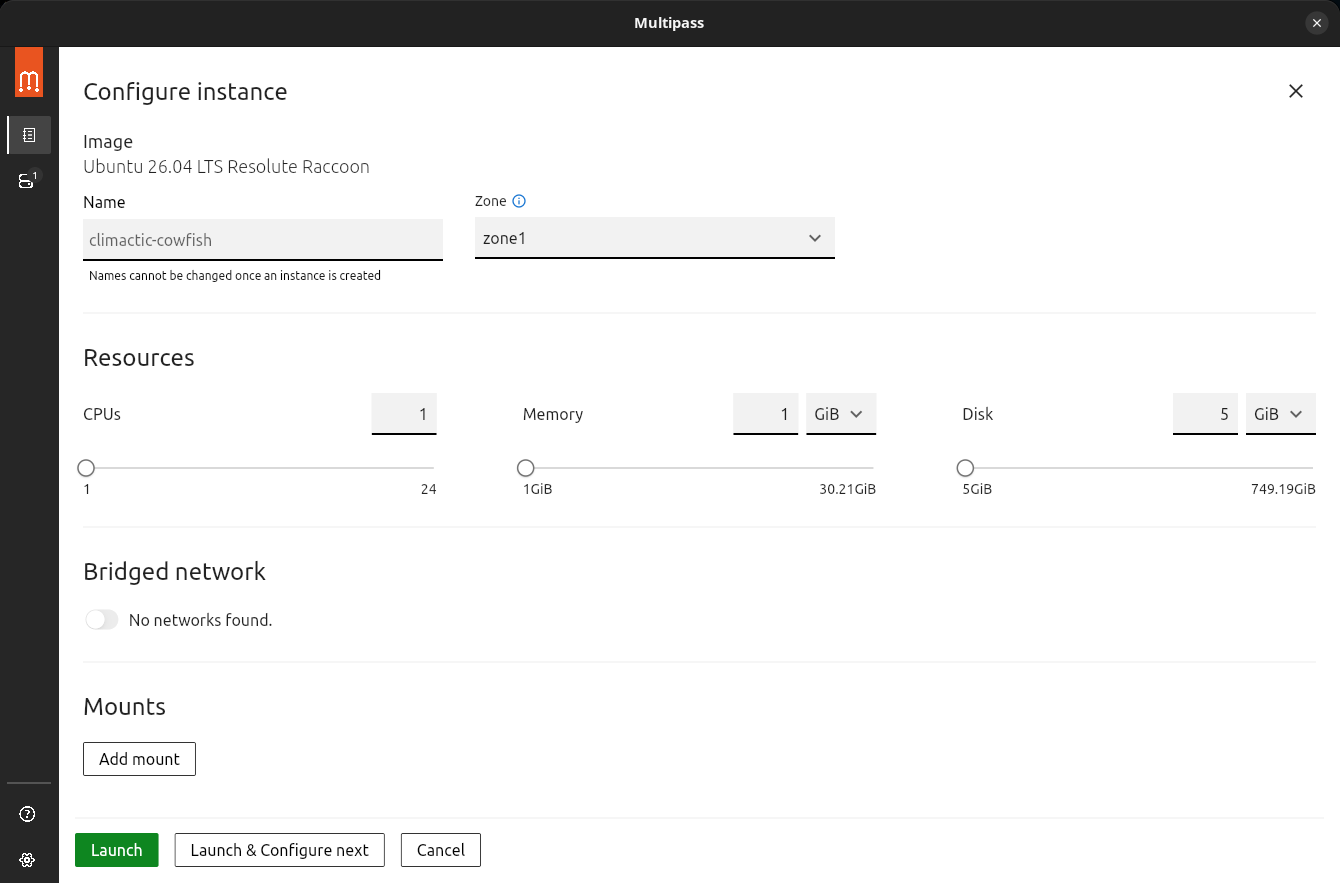
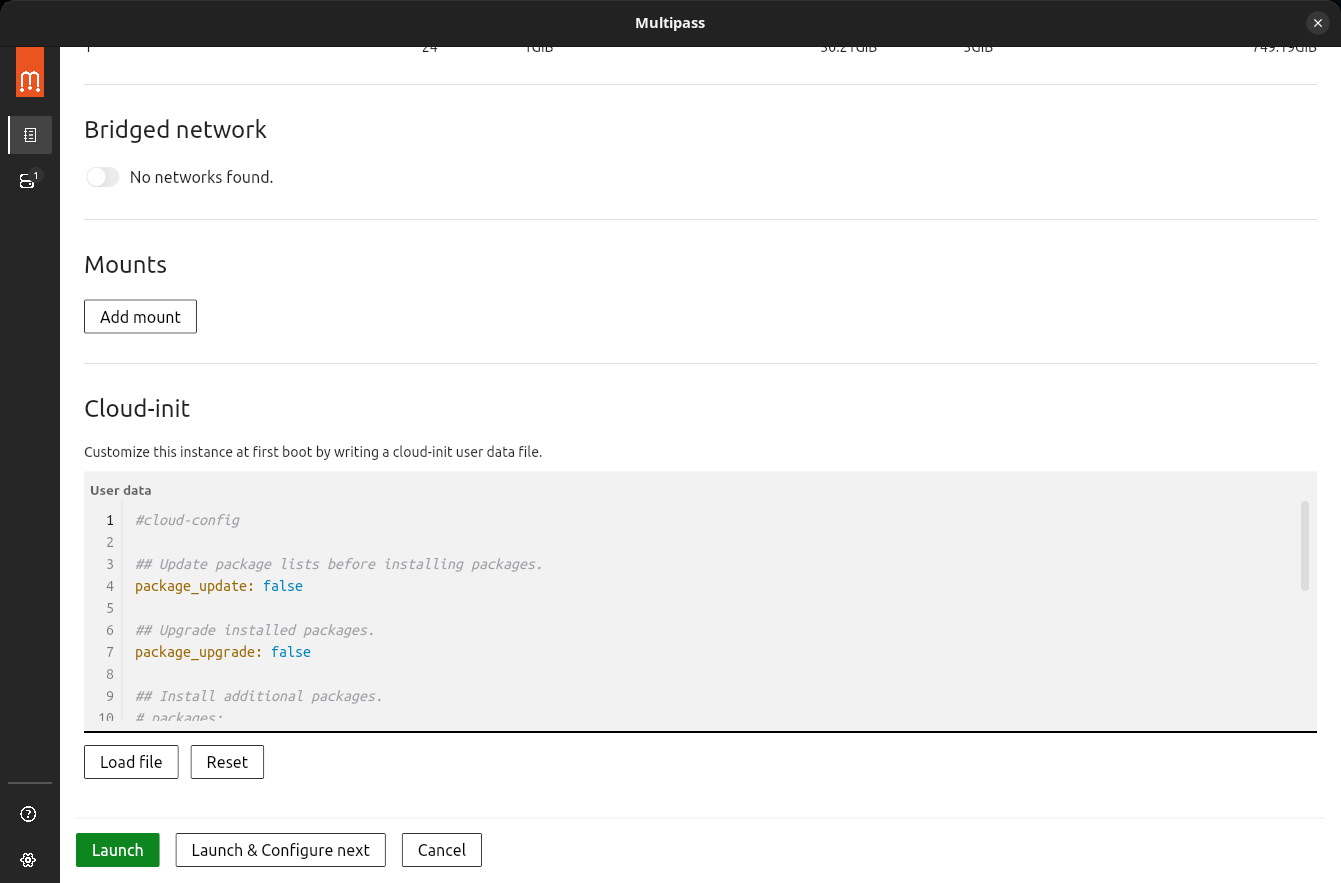
You can configure an instance’s launch options, specifying parameters such as its name, allocated resources, mounts and cloud-init user data. You can enter the user data directly in the Cloud-init editor, load it from a file or reset it to the default template.
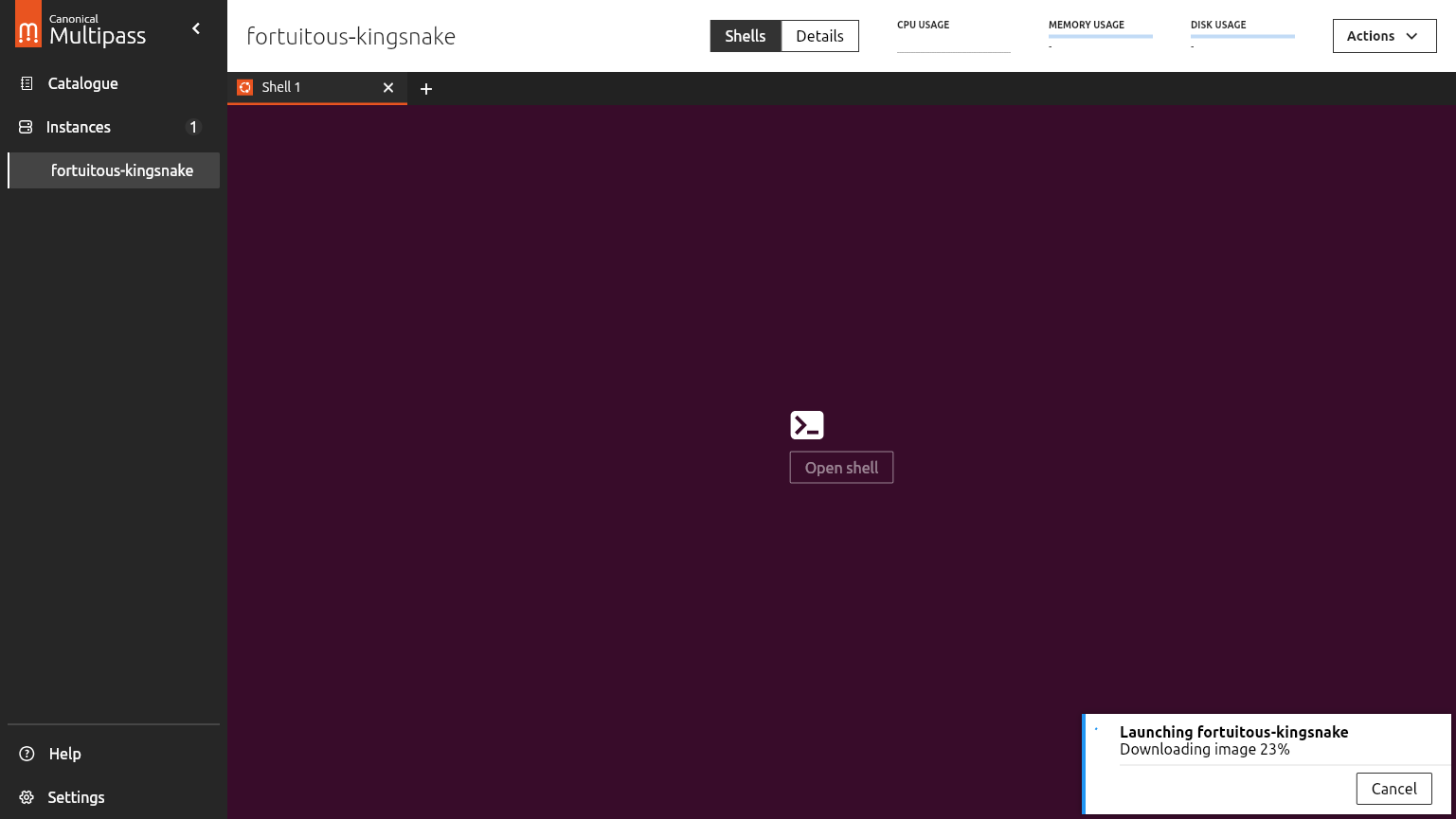
When you launch a VM, you can see details on all the steps taken and be notified of errors.
Instances tab
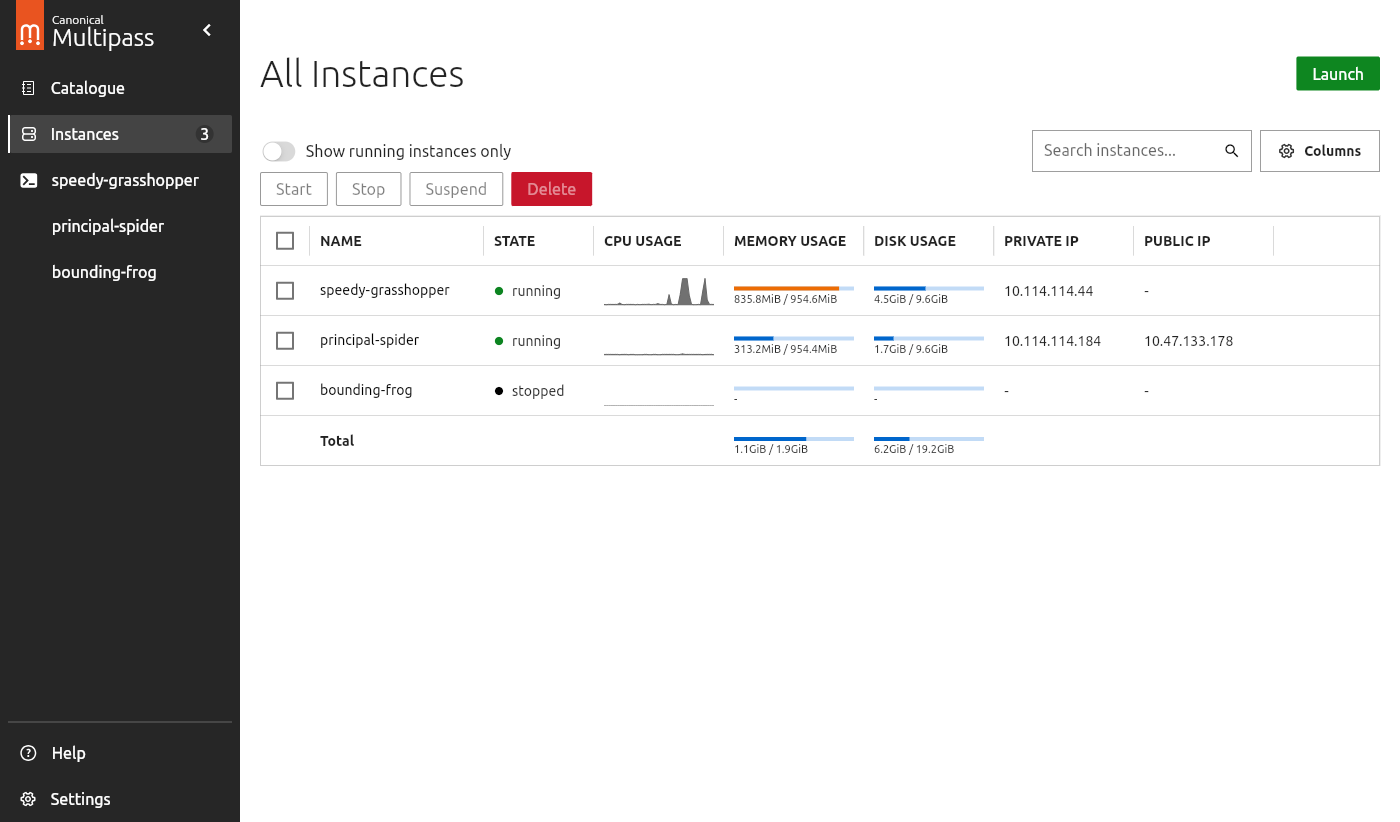
Here you can see an overview of all your instances and perform bulk actions such as starting, stopping, suspending or deleting the selected ones. You can also filter instances by name and by state (“running” or “stopped”).
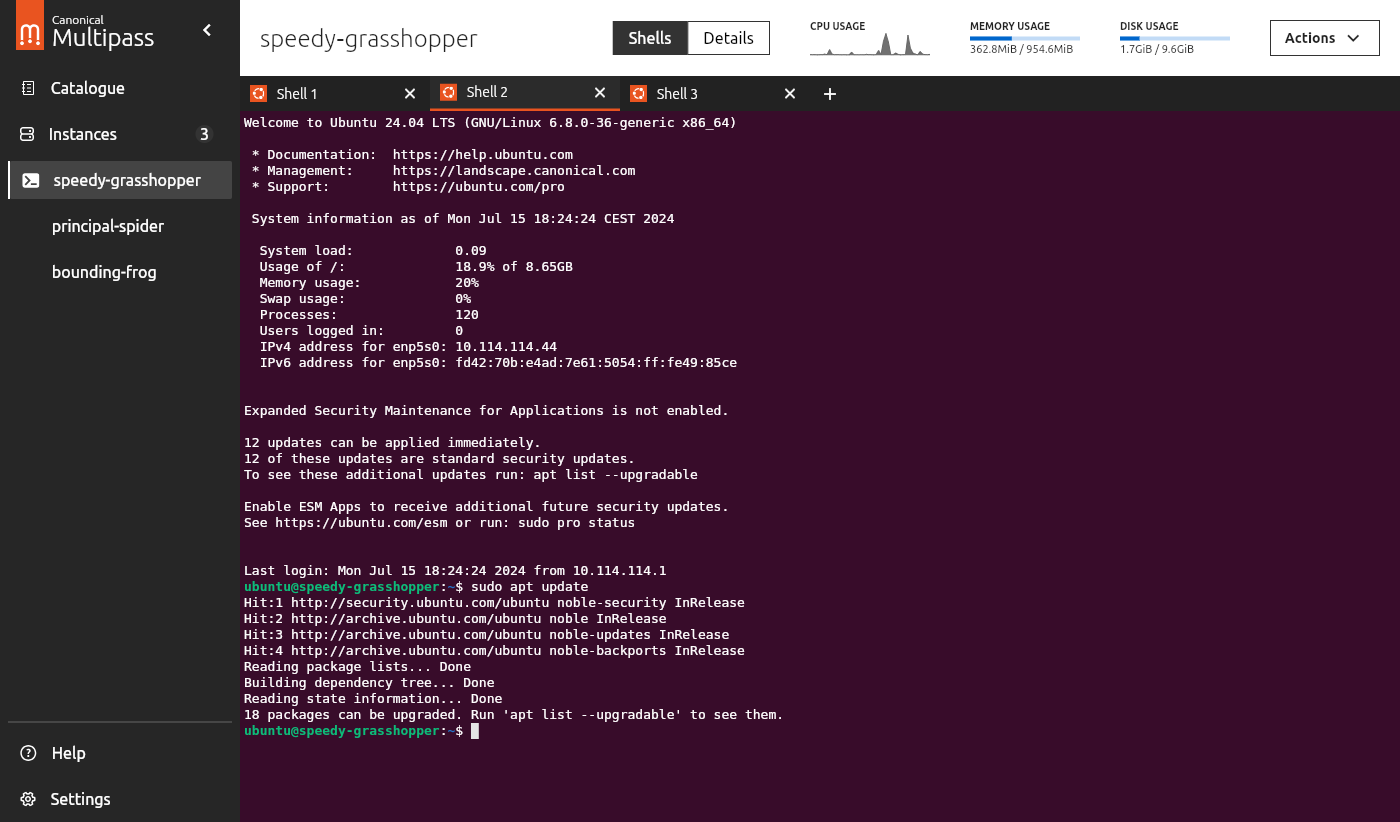
You can perform actions on an individual instance, such as starting, stopping, suspending or deleting it. You can also open shells within a running instance, where you can do all of your work that is specific to that instance.
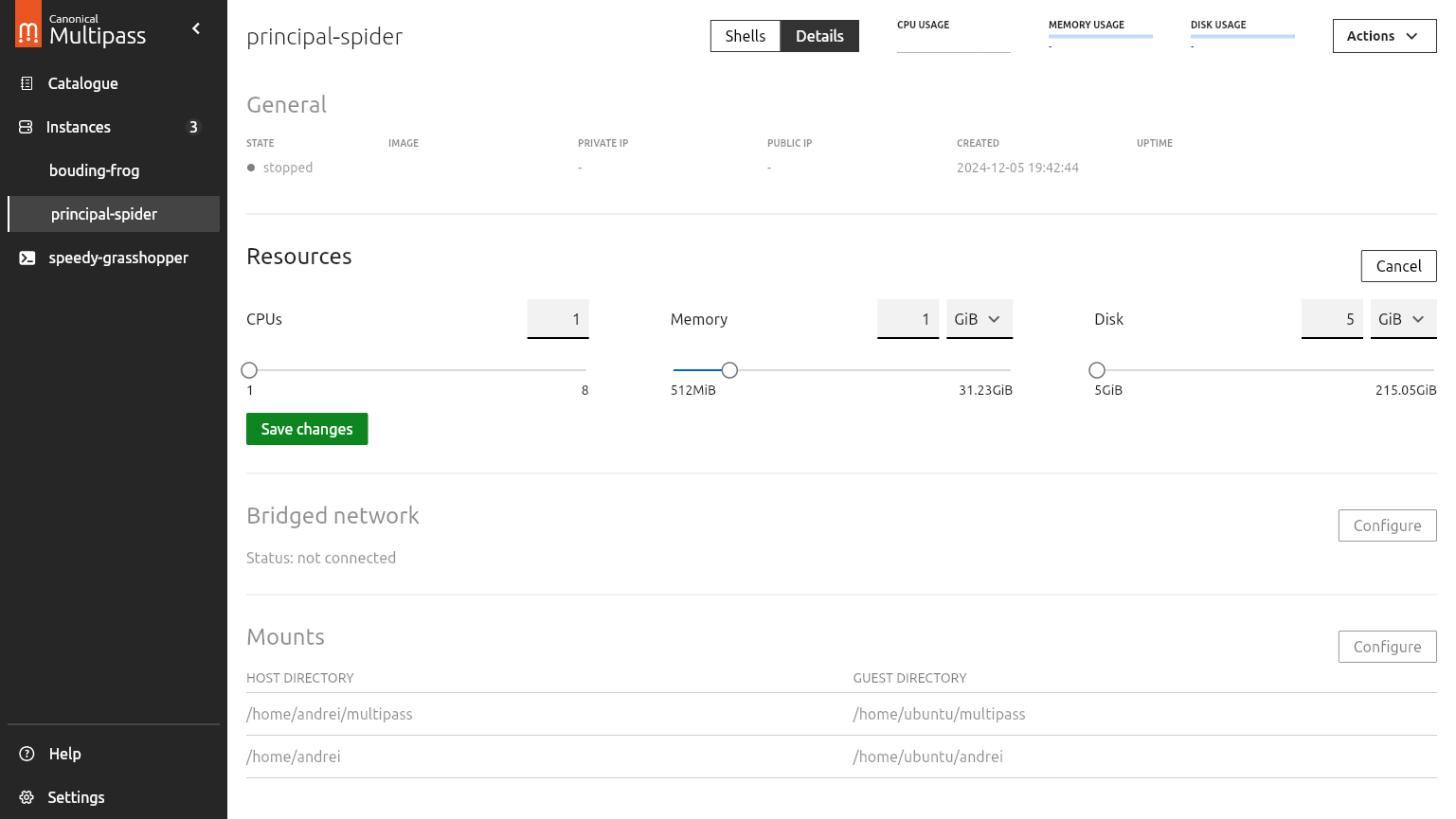
You can also edit an instance; in particular, you can change its allocated resources, connect it to a bridged network or edit its mounts. Some of these settings require the instance to be stopped before they can be applied.
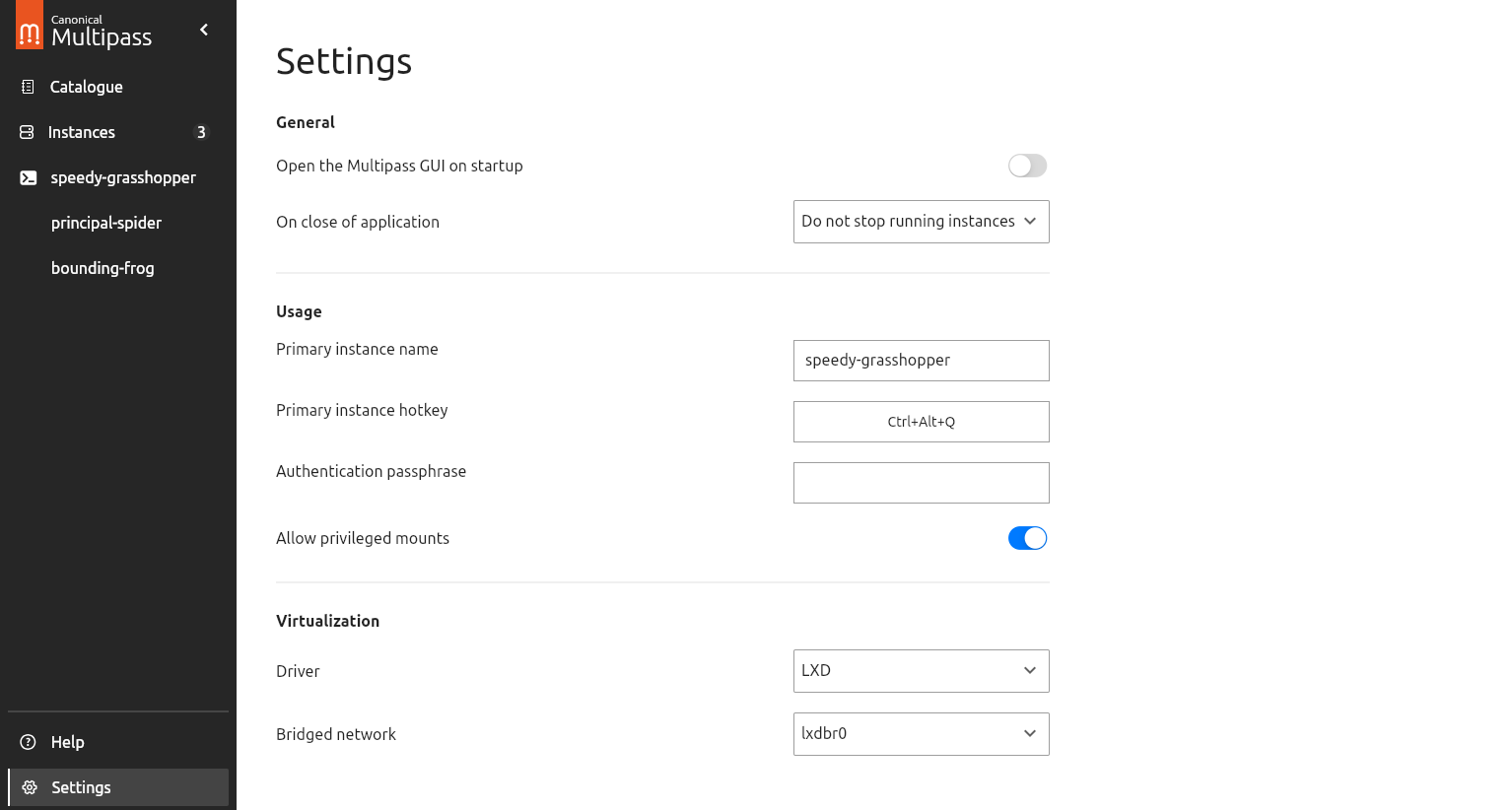
Settings tab
Here you can change various Multipass settings, although not all settings that are available in the CLI are present in the GUI and vice versa.
Tray icon
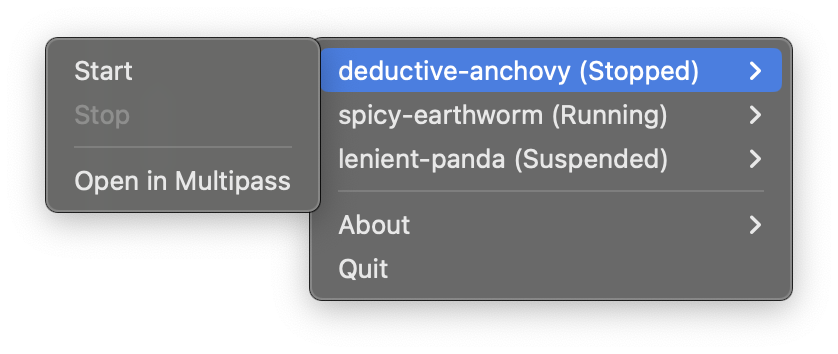
You can manage your instances using the tray icon menu as well.