
Troubleshoot networking
This guide helps you troubleshoot known Multipass networking issues on macOS and Windows.
Before you start
Before troubleshooting a specific symptom, review these quick checks:
How Multipass networking works, if you need more context.
Which problem do you have?
The following scenarios describe commonly encountered Multipass networking problems. Choose the one that matches what you see.
macOS
Windows
Apps that commonly interfere with Multipass
Before troubleshooting a specific symptom, check whether you’re running any of the following tools known to interfere with Multipass networking:
VPN software may route the subnets used by Multipass through the VPN interface instead of keeping it locally available. Possible culprits include OpenVPN, F5, Dell SonicWall, Cisco AnyConnect, Citrix/Netscaler Gateway, and Juniper Junos Pulse / Pulse Secure. (
Tunnelblickis known not to cause this problem.)Cisco Umbrella Roaming Client can bind to localhost port 53, which clashes with Internet Sharing and breaks your instance’s DNS.
dnscrypt-proxy, dnscrypt-wrapper, or cloudflared-proxy can also bind to localhost port 53 by default.
Another
dnsmasqprocess bound to localhost port 53 can clash with Internet Sharing.A custom DHCP server bound to port 67 can also clash. On macOS, check what is using the DHCP port with
sudo lsof -iUDP:67 -n -P; you should only seelaunchdandbootpd.
If you use any of these, try quitting it and reproducing your problem before going further.
On macOS
An instance won’t start on macOS
I try running
multipass launchand it fails. The error mentions it can’t determine an IP address.
What you’ll see
A launch that fails with a message containing:
Unable to determine IP address
What’s happening
This usually means some networking configuration is incompatible, or there is interference from a firewall or VPN.
See also
How to fix it
Work through these one at a time, trying to launch again after each:
Check your firewall. In your macOS Firewall settings, ensure it is not set to “Block all incoming connections”, which stops the local service that gives your instance an address. (It is fine to block incoming connections specifically to
multipassd.)Check your VPN. If you use a VPN, disconnect it and try again. See Apps that commonly interfere with Multipass.
Check Little Snitch (or any similar per-app firewall). Its defaults are usually fine, but make sure it allows
mDNSResponderandbootpd. If image downloads fail or you seeUnknown errorwhen runningmultipass launch -vvv, Little Snitch may be blockingmultipassd’s network access (see issue #1169).
You can’t open a shell in your instance
The instance is running, but
multipass shelldoesn’t respond or won’t connect.
What’s happening
Your computer can’t route traffic to the instance’s network. This is most often caused by VPN software that takes control of the routing table.
How to fix it
Add a route to the instance network by hand:
sudo route -nv add -net 192.168.64.0/24 -interface bridge100
If you get a
File existserror, delete the existing route first and add it again:sudo route -nv delete -net 192.168.64.0/24 sudo route -nv add -net 192.168.64.0/24 -interface bridge100
If you use Cisco AnyConnect, it actively monitors the routing table and may undo your changes. Two options:
Use OpenConnect instead (
brew install openconnect), which interferes with routes far less. Check with your IT department first, as your company policy may not allow it. There is also a non-standard workaround if you must stay on AnyConnect.Ask whether your VPN offers a split tunnel option, where your VPN administrator can mark a range of addresses to be excluded from the VPN. Cisco and Pulse Secure / Juniper Junos Pulse both support this.
A workaround for VPN conflicts
This was reported in issue #495. Add the following line to /etc/pf.conf, after the nat ... line if there is one, otherwise at the end:
nat on utun1 from bridge100:network to any -> (utun1)
Then reload the firewall rules:
sudo pfctl -f /etc/pf.conf
Use a different subnet
Since Multipass 1.17, each availability zone gets its own subnet from the 192.168.252.0/16 range. Multipass chooses these automatically and avoids ranges already in use, so conflicts are uncommon. If a zone’s subnet does clash with your network, you can set a different one in the zone’s configuration file.
To change a zone’s subnet:
List the current subnets to find the zone you want to change:
multipass zones

Name    State         Subnet
zone1   Available     192.168.252.0/24
zone2   Available     192.168.253.0/24
zone3   Available     192.168.254.0/24
Stop the Multipass daemon.
In the Multipass data directory, open the zone’s file under
zones/(for example,zones/zone1.json) and set itssubnetvalue to a free range.Start the Multipass daemon again.
Multipass reads these files at startup, so the new subnet takes effect once the daemon restarts. Note the original value before you change it, in case you want to revert.
Your instance can reach IP addresses, but not domain names
I can open a shell in my instance, but commands that use domain names don’t connect.
Step 1: Can the instance reach an IP address?
Inside the instance, try to reach an address by its numbers:
ping 1.1.1.1
If there’s no connection, you’ll see every packet lost:
PING 1.1.1.1 (1.1.1.1) 56(84) bytes of data.
^C
--- 1.1.1.1 ping statistics ---
3 packets transmitted, 0 received, 100% packet loss, time 2030ms
Note
The macOS firewall can block the test messages that ping uses, which makes this test misleading. Just for this test, turn off Stealth Mode in System Preferences > Security & Privacy > Firewall.
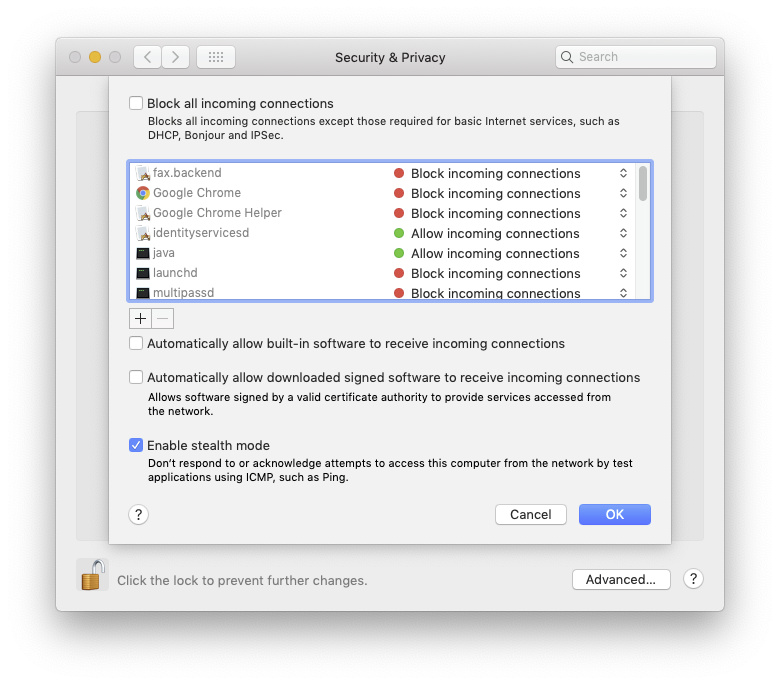
With Stealth Mode off, a working IP connection looks like this:
PING 1.1.1.1 (1.1.1.1) 56(84) bytes of data.
64 bytes from 1.1.1.1: icmp_seq=1 ttl=53 time=7.02 ms
64 bytes from 1.1.1.1: icmp_seq=2 ttl=53 time=5.91 ms
64 bytes from 1.1.1.1: icmp_seq=3 ttl=53 time=5.12 ms
^C
--- 1.1.1.1 ping statistics ---
3 packets transmitted, 3 received, 0% packet loss, time 2143ms
If the test still fails, stop here: the DNS checks below apply only when the instance can reach an IP address.
If this works, the instance can reach IP addresses, but DNS resolution is broken. Continue below.
Step 2: Is name resolution broken?
Still inside the instance, ask the zone gateway (for example, 192.168.252.1 for zone1) to look up a name:
dig @192.168.252.1 google.ie
If it’s broken, the request times out:
; <<>> DiG 9.10.3-P4-Ubuntu <<>> google.ie
;; global options: +cmd
;; connection timed out; no servers could be reached
To confirm the problem is the built-in resolver and not the wider internet, ask a public resolver directly:
dig @1.1.1.1 google.ie
If that one succeeds (you get an ANSWER SECTION with an address), then your instance’s connection is fine and the macOS Internet Sharing name resolver is the culprit.
What’s happening
The built-in resolver, mDNSResponder, listens on port 53. If another program has taken that port, name resolution inside your instance breaks.
How to fix it
If you use Little Snitch or a similar per-app firewall, make sure
mDNSResponderis allowed to make outgoing connections. The built-in macOS firewall should not block it.Check what is using port 53 on your computer:
sudo lsof -iTCP:53 -iUDP:53 -n -P
While an instance is running, you should see only
mDNSResponder:COMMAND PID USER FD TYPE DEVICE SIZE/OFF NODE NAME mDNSRespo 191 _mdnsresponder 17u IPv4 0xa89d451b9ea11d87 0t0 UDP *:53 mDNSRespo 191 _mdnsresponder 25u IPv6 0xa89d451b9ea1203f 0t0 UDP *:53 mDNSRespo 191 _mdnsresponder 50u IPv4 0xa89d451b9ea8b8cf 0t0 TCP *:53 (LISTEN) mDNSRespo 191 _mdnsresponder 55u IPv6 0xa89d451b9e2e200f 0t0 TCP *:53 (LISTEN)
If no instance is running and Internet Sharing is off, the command returns nothing. Any other program in this list is conflicting with Internet Sharing and breaking your instance’s DNS; quit it. See Apps that commonly interfere with Multipass.
If you can’t remove the conflicting program
You can point the instance at a public resolver instead:
Inside the instance, add this line to
/etc/resolv.conf:nameserver 1.1.1.1
(
1.1.1.1is a free resolver from Cloudflare; use any you prefer.)To make this automatic on every new instance, use a custom cloud-init file that sets
/etc/resolv.confat first boot.
Extra IP addresses aren’t reachable
I added an extra IP address to my instance, but nothing on the network can reach it.
What’s happening
On macOS, the Multipass network only allows through the single IP address it originally assigned to each instance. If you add another address (an “IP alias”), requests for it get out but the replies are filtered, so the address never answers.
This means tools that depend on extra IP addresses, such as MetalLB under MicroK8s, won’t work on macOS.
What to do
There is no documented Multipass fix for additional IP addresses on macOS. Avoid relying on additional IP addresses for macOS instances.
Networking stopped after a macOS update
Everything worked before. I updated macOS, and now my instances can’t connect.
What’s happening
A macOS update (this was first seen with 12.4, but can happen on other versions too) changes the firewall. If instances were still running during the update, the firewall can end up blocking them: Apple’s bootpd service appears to stop answering address requests.
How to fix it
Try these in order (see issue #2387 for the full discussion):
Restart your computer.
Turn Internet Sharing and/or the firewall off and then on again.
In the firewall settings, allow incoming connections for the driver (QEMU) and for Multipass.
On Windows
Your security software is blocking instances
My connectivity is unreliable, and I run anti-virus or network security software.
What’s happening
Anti-virus and network security tools aren’t always aware of virtual machines and can block their traffic. Known examples include Symantec, ESET, Kaspersky, and Malwarebytes.
How to fix it
If you’re having connectivity issues, temporarily disabling this software to test can result in a positive outcome.
Slow Wi-Fi upload speeds
I created an External Switch on my Wi-Fi adapter in Hyper-V, and now my upload speed has dropped to around 1 Mbit/s.
What’s happening
This is a long-standing Windows networking limitation: certain network “offload” features interfere with Hyper-V’s virtual networking and cripple upload speed. The fix is to switch off those features for the virtual adapter.
How to fix it
Open Device Manager.
Expand Network Adapters.
Find Hyper-V Virtual Ethernet Adapter #N (where N is the one connected to Wi-Fi).
Right-click it and choose Properties.
Go to the Advanced tab.
Find and disable both of these:
Large Send Offload v2 (IPv4)
Large Send Offload v2 (IPv6)
Click OK, then restart your networking or your machine if needed.
How Multipass networking works
This background information can help if you need to understand why the previous troubleshooting steps mention specific host services, address ranges, or switches.
macOS
On macOS, Multipass uses Apple’s built-in Internet Sharing feature to give your instances a network. When you create an instance, macOS:
Creates a private network and connects each instance to it. Multipass draws addresses from the
192.168.252.0/16range, assigning a/24subnet to each availability zone:192.168.252.0/24forzone1,192.168.253.0/24forzone2, and192.168.254.0/24forzone3.Hands out IP addresses and resolves names on that network from the first address of the zone’s subnet (for example,
192.168.252.1forzone1), using Apple’s ownbootpdandmDNSResponderservices.
In System Preferences > Sharing, Internet Sharing may appear switched off. That’s normal; it still runs in the background for your instances.
Windows
On Windows, Multipass uses the built-in Hyper-V virtualization platform and its Default Switch. That switch uses Windows Internet Sharing to give your instances their IP addresses and name resolution.